Requisition types and Create Requisition process changes
Last updated: September 24, 2025
With the implementation of the Workday Recruiting module, new requisition types have been introduced, and the Create Job Requisition Business Process (BP) has been updated. This job aid provides an overview of these changes.
For a detailed walkthrough of the steps involved in the Create Job Requisition business process, refer to the appropriate User Guide:
- Create Job Requisition – Staff Campus
- Job Requisition – Existing Position – Medical Centers
- Create Job Requisition – New Position – Medical Centers
On this job aid:
1. Requisition Types
- Standard
- Confidential
- Evergreen
2. Creating a Requisition – What’s New?
- “Reason” field
- “Job Posting Text” field
- “Edit Additional Data” sub-processes
- Job Posting Information
- Background Check Billing
Refer to the following job aids or user guide for these other requisition-related tasks:
- Post a job requisition: Job Postings and Early-stage Applicant Review Job Aid
- Close, freeze, or unfreeze a requisition: Close or Freeze/Unfreeze a Job Requisition Job Aid
- Assign a security role to a requisition: Security Roles Job Aid
- Edit a requisition: Edit Job Requisition User Guide
Requisition types
The Workday Recruiting module offers three different requisition types to cater to various hiring needs and to optimize the recruitment process. Descriptions for each follow.
1. Standard
Used for most positions; specifically, this includes any competitive recruitment posted to a UW job site, parent / child requisitions, and for creating departmental candidate banks.
A Standard Requisition is applicable in any instance where neither an Evergreen requisition nor a Confidential requisition is appropriate.
2. Confidential
Used for non-competitive direct hires (e.g. for temporary and nonpermanent jobs) and search waiver hires. Also used to populate campus-wide candidate banks (e.g. for Fiscal Specialist 2, Budget/Fiscal Analyst, and Shared Services Specialist jobs).
Confidential requisitions are not created from a Workday PN, but generate a PN when they are created.
The requisition is not posted to our jobs sites– eligible candidates must be invited to apply via departmental recruitment or by email from a recruiter.
3. Evergreen
Used for ongoing or multi-position recruitment for a particular job. Evergreen requisitions support existing and anticipated openings for jobs that departments hire routinely and often unpredictably, or seasonally and with high-volume. These typically stay open for six months to one year.
Candidates are sourced, reviewed, and screened from the Evergreen requisition, but finalists at the time of offer are moved into a Standard or Confidential requisition.
Only the Recruiting Office Partner and UTemp Office Partner security roles can create Evergreen requisitions.
Creating a requisition: What’s new?
Although the Create Job Requisition Business Process (BP) is familiar, the implementation of Workday Recruiting permits the inclusion of extra data fields which allow added clarity, context, and customization to a requisition. These include “Reason”, “Recruiting Instruction”, “Job Posting Title”, “Job Posting Text”.
“Reason” field
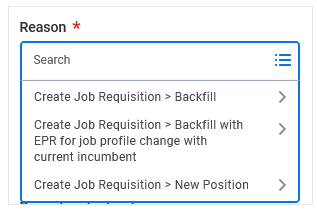
The “Reason” field of the Create Job Requisition BP has been updated to select from three primary options:
Backfill – used when replacing the incumbent of an existing position, whether or not that position is vacant
Backfill with EPR for job profile change with current incumbent – used when replacing the incumbent of an existing position, where updates to the position are needed and recruitment must start before the role is vacated and updates
New Position – used for newly created positions. Each option expands to further select between competitive, non-competitive, and Search Firm. Choose the selection that matches the recruitment for the position you are creating the requisition for.
“Recruiting Instruction” field
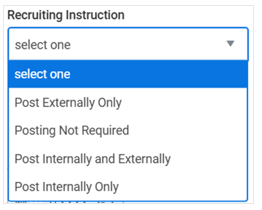
The “Recruiting Instruction” field of the Create Job Requisition BP has been added to let Recruiting Office Partners (ROPs) know which Job Sites (if any) on which to post a position:
- Post Externally Only – post on the external jobs site only; used if current UW employees are not eligible for a role.
- Posting Not Required – do not post this position on a jobs site; used for direct hire requisitions.
- Poster Internally and Externally – post on both the internal and external jobs sites; used for most competitive hires and candidate banks.
- Post Internally Only – post on the internal jobs site only; used when a position is available only to recruitment by current UW employees “Job Posting Text” Field.
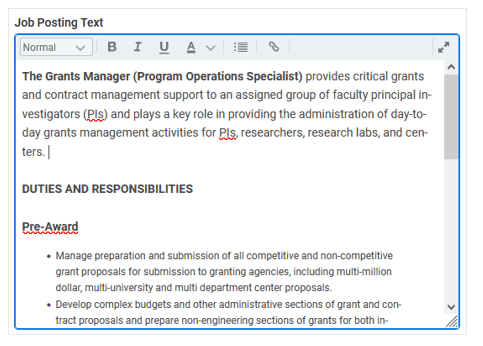
A “Job Posting Text” field has been added, and it is where the text as it should appear within the job posting must be inserted. This new field allows the text as it appears within the job posting to differ from the Job Description sent to compensation for review. Text can be formatted for accessibility and viewing.
Make sure to carefully follow the job posting guidance and template found on the Job Posting Components page to ensure your job postings meet all requirements and formatting guidelines (and aren’t sent back for corrections).
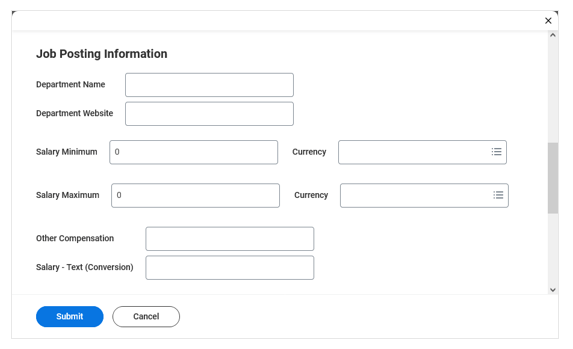
“Edit Additional Data: Job Posting Information” sub-process
The information collected in this sub-process appears in the job posting. It serves two main purposes:
1. Optional: Add a department name and linked web address to the posting
2. Required for Pro Staff positions: Enter the salary range to display in the posting
Note: For Classified positions, leave the salary field blank—Workday will automatically populate it from internal tables.
Note: the “Other Compensation” and “Salary – Text (Conversion)” fields are rarely used, and can be left blank.
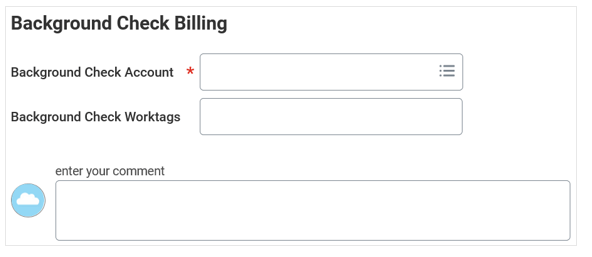
“Edit Additional Data: Background Check Billing” sub-process
Workday Recruiting allows for direct payment for background checks, rather than reliance on external payment methods (e.g. ProCard). To accomplish this, complete one or both fields:
1. Background Check Account: Select the Supervisory Organization of the hiring department from the drop-down list.
2. Background Check Worktags: Enter a specific cost center, fund, grant, or other worktag to bill directly for the background check, if available.
Note: If no worktag is entered, billing will default to the Supervisory Organization, and may need fiscal reconciliation later