Candidate communications
Last updated: September 24, 2025
Types of automated candidate communications
Workday automatically communicates with candidates at various stages of the hiring journey. These communications help keep candidates informed and engaged.
Popup Messages
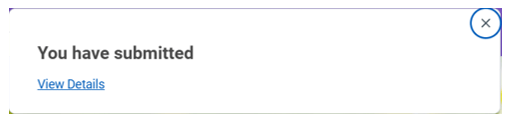
Instant on-screen confirmations appear immediately after a user completes actions in Workday. During the recruitment process, these may appear for internal or external candidates or new hires. Some examples of these types of communications include:
- Job Application submission
- Questionnaire submissions (e.g. Criminal History or Sexual Misconduct Disclosures)
- Task completion
My Tasks
Many different types of tasks are required for those involved in the recruitment process. Tasks will appear during specific recruitment stages and may route to internal or external candidates. Tasks will appear in the “My Tasks” card on an internal candidate’s Workday home page or in their Workday inbox. Tasks for external candidates will appear in the “My Tasks” card on their Candidate Home page of the applicant’s UW Careers account. Some examples of these types of communications include
- Questionnaires (e.g. Criminal History or Sexual Misconduct Disclosures)
- Complete Personal Information and Government ID tasks
- Onboarding tasks
Notifications
Notifications may be sent after a corresponding action has been completed in Workday.
Notifications appear differently for internal vs external candidates. Internal candidates will receive a notification within Workday, accessible by clicking on the bell icon from their Workday homepage. Internal candidates will also receive a corresponding email sent to their UW email address. External candidates will receive an email sent to their personal email account, as established when creating their Careers at UW account.
Some examples of candidate notifications include:
- Application submission confirmation – Thanks the candidate and confirms receipt of their application
- Disposition notification – Informs the candidate when they are no longer under consideration
- Job Requisition has been frozen/unfrozen – Informs the candidate when there is a pause in the recruitment, or when a recruitment has been resumed
Application Status Updates
Candidates can view real-time status updates in their Jobs Hub (internal applicants) or UW Careers Candidate Home Account (external applicants). Statuses include:
- In Progress – Application is under review
- Sent to Dept – Resume has been forwarded to the hiring manage
- Not Selected – Candidate is no longer under consideration.
Note: for a list of automated messages that Workday will send to candidates, please see the Applicant and Candidate Messages file (Excel).
How to communicate with job candidates
Candidate messaging in Workday keeps communication centralized, secure, and easily trackable.
Send Ad Hoc Messages to Candidates
When a candidate message is sent in Workday, it is delivered via email. Internal applicants will also receive a Workday notification displaying the subject and body of the message (note that attachments cannot be opened from the email).
Note: only Hiring Managers, Hiring Manager Delegates, and Recruiting Office Partners can send Ad Hoc messages to candidates
1. Open the Candidate Profile of the applicant you wish to send the message to.
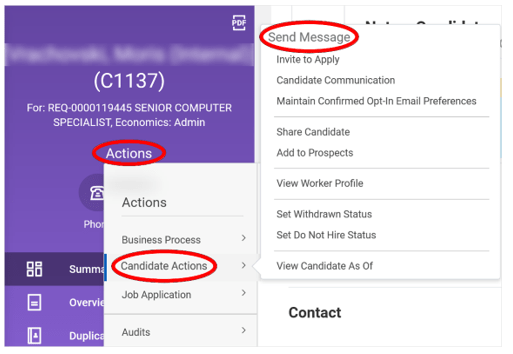
2. Select the Related Actions menu, then hover over Candidate Actions and select Send Message.
3. In the Send Message modal , enter or select from the following fields:
- Job Application – select the Requisition associated with the message
- Message Template (optional) – choose a template to prepopulate your message
- Subject – If not auto-populated from a chosen template, input a subject line
- Body – If not auto-populated from a chosen template, input the message contents
- From Display Name (optional) – Enter your preferred display name
- Reply To Email Address (optional) – Enter an alternate email address for replies
- Attachments (optional) – add attachments (i.e., documents, images, etc.).
4. Select OK.
Access Candidate Communication History
1. Open the Candidate Profile for the candidate whose communications you want to view.
2. Navigate to the onscreen card that contains the timeline.
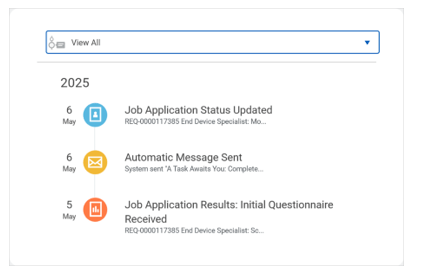
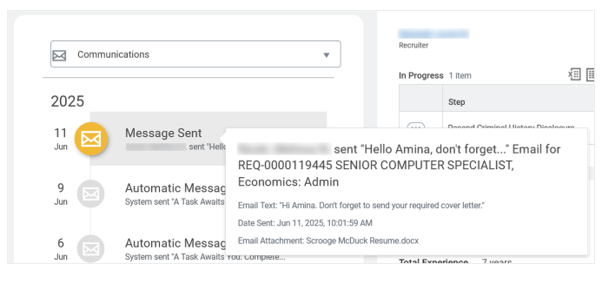
3. Expand the collapsible menu within that card, then select Communications.
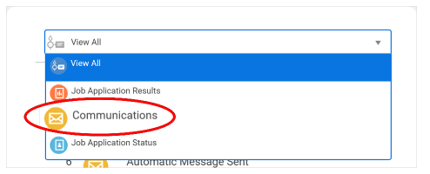
4, Select any listed message to expand message details.