Last updated: November 13, 2026
Overview
This guide helps Managers and Hiring Manager Delegates navigate to an individual candidate or the entire candidate pool, navigate the candidate pool, and disposition candidates. If you have any questions, please contact the Primary Recruiter assigned to your job requisition (REQ).
Open an individual candidate record
To open an individual candidate record, enter their name in the Workday Search field in this format: CAND: FIRSTNAME LASTNAME
For example:
CAND: JANE DOE
Tips for candidate search:
- You can only see candidates who have been referred to a REQ that you can access.
- If a search returns more than one record for the same candidate, email your Primary Recruiter and include the candidate’s name and the candidate IDs for each of their records. A screen shot works great for this.
See all active candidates ready for your consideration
Open your REQ to see all candidates who are in active status and waiting for your consideration. For help finding and opening your REQs, see Locating open job requisitions.
1. The REQ landing screen offers two ways to display your candidates.
- To see all active candidates, select the Candidates tab to display a grid of all active candidates.
- To see all active candidates in a specific recruiting stage, select the Overview tab, then click on the stage from the recruiting funnel, then select Candidate Actions.
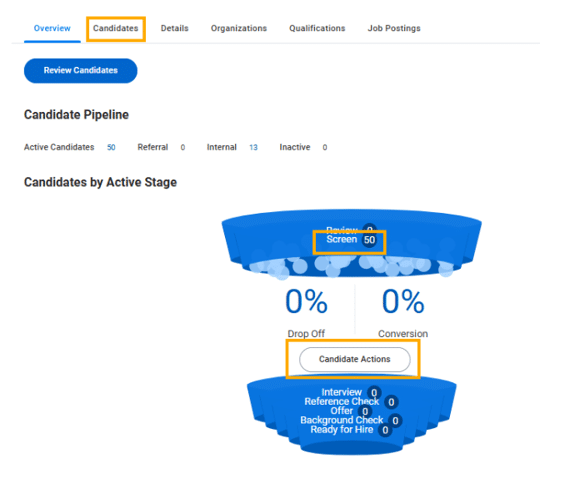
2. Workday will display the candidate grid after you open the candidate tab or use the recruiting funnel.
Tips for using the candidate grid:
- Candidates arrive on your grid in the “Screen – Manager or Designee” Step/Disposition. The text in the Step/Disposition column will update as you move the candidate through the hiring process.
- The Awaiting Action column displays all employees who have ability to take the next step, which typically includes the manager, their delegates and all Recruiting Office Partners.
- Candidates who have withdrawn or been declined by you or the Primary Recruiter will not appear on your candidate grid
- Use the Export to Excel icon to download a list of your candidates for notetaking and reference. The Excel icon is located immediately above the candidate grid on the right side of the screen.
3. Select the first candidate in your grid to open their job application.
Screening job candidates
1. To navigate between job candidates, use the up and down arrows in the upper -right corner of the candidate profile screen. You can track your progress moving through the candidate pool on the upper left of your screen (for instance, “1 of 55”).
2. If the candidate has entered their education and work experience in Workday’s job application fields, you can review their information on the right side of your screen.
3. If the candidate has attached a resume, use the resume icon below their name to open their attachment.
Tips for reviewing candidate applications:
- If a candidate has submitted a resume and completed Workday’s job application fields, review both.
- To view all pages of an attachment, use the navigation arrows at the top of the attachment display screen. Workday does not use scrolling to view multiple pages on the same screen.
- Candidates may voluntarily attach cover letters or other materials. To maintain a fair screening process, only view information that was required of all job applicants.
Dispositioning candidates
Timely dispositioning is essential for a positive applicant experience. It also helps your Primary Recruiter monitor your progress and needs. There are three levels of dispositioning:
Move Forward – In Stage: sort candidates into tiers or record screen stage actions
Move Forward – Next Stage: advance candidates in the hiring process
Decline: remove candidates from consideration
Note: If the Move Forward button is not available, there is another action pending for the candidate. Contact your Primary Recruiter for assistance.
- Use the Move Forward tool at the bottom left of your screen to sort or advance candidates. To sort candidates, select the screen stage (Screened A, Screened B, Screened C, or Phone Screen); to advance candidates in the hiring process, select the next action (Interview, Initial Offer, or References – outside Workday). To complete this step, select the Move Forward button.
- Use the Decline button to remove a candidate from consideration. Select your reason from the provided options.