Last updated: June 28, 2026
Campus staff, faculty, academic personnel, and student employees request and manage their absences in Workday.
Medical Centers employees track and report absences in UW Medicine Timekeeping. Time off balances that appear in Workday are as of the end of the previous pay period; for current balances, refer to UW Medicine Timekeeping.
Type of Absence
An important part of managing your absence is understanding the various types of Time Off and Leaves of Absence for which you are eligible. Review the Time Off Types webpage for more information.
Requesting time off
To submit a time off request in Workday, follow the step-by-step instructions below.
1. From the top left Menu, select the Manage Absence app.

2. Click on one or more calendar days. When selected, the dates will be highlighted.
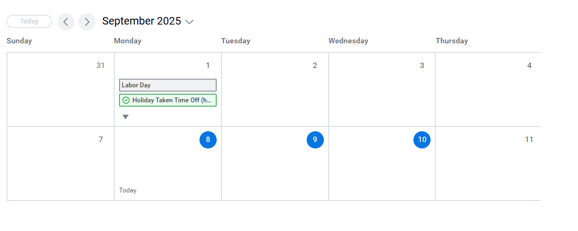
3. At the bottom left, click the button that says # Days – Request Absence. The number displayed in the button will match the number of days you highlighted in the calendar.
4. From the Request Absence pop-up, select your Type of Absence.
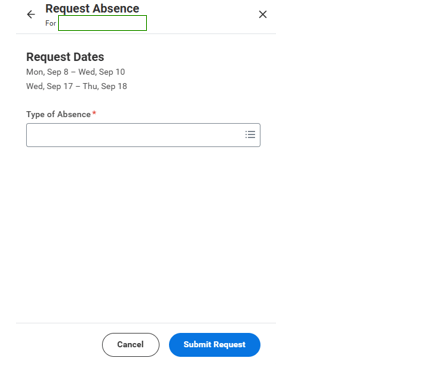
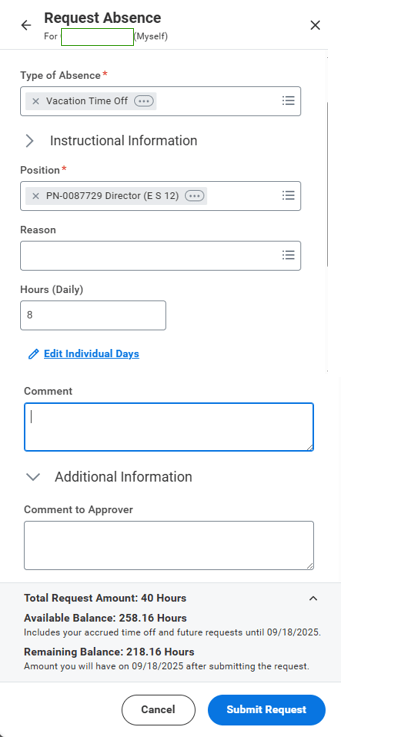
5. From the second screen of the pop-up, you may:
- Change the Position associated with your request (if you hold more than one position),
- Edit your daily hours for each day of the request by changing the value in the Hours (Daily) field,
- Add a Reason code (if applicable),
- Edit Individual Days to change the daily quantity for each selected day.
- Add a Comment in the business process that will appear when you open the time off in the absence calendar
- Add a Comment to Approver that will appear in the business process history for the Time & Absence Approver
- Expand your Total Request Amount to view your Available Balance and Remaining Balance after the request.
6. Click Submit Request to route your request for approval to your Time & Absence Approver. In order to receive pay for hours on your normally scheduled payday for the pay period, Time Off requests must be entered, submitted, and approved prior to the Timesheet Approval Deadline.
Submitted Time Off will automatically route to your designated Time & Absence Approver to review and approve.
Viewing your time off balances
Time Off-eligible employees can locate their accrued Time Off balances by type in Workday.
OPTION 1: Manage Absence
For current Time Off balances, select Menu > Manage Absence and review the Balances table on the right-hand side. Change the Balances as of date to view balances as of a future or past date.
OPTION 2: Actions menu
From the Actions menu, navigate to Time and Absence and select Time Off Balance. Change the As Of date to view balances as of a future or past date.
The Balance as of Date function is used to help employees who hold an FTE proactively plan for time offs, taking into consideration time off already requested and projected accruals for time off based on FTE. Since Sick, Vacation and Personal Holiday Time Off and the Personal Holiday accrual for employees who don’t hold an FTE is based on paid hours, and paid hours cannot be predicted (i.e., paid hours can vary month to month), this functionality will only verify your balance as of today because Workday will not know the future accrual for any given month until after the pay results complete for that month.
All absence plans display balances as of a calendar year except for:
-
- Vacation Time Off: Displays balances across a 12-month period around your Time Off Service Date
- Holiday Credit and Compensatory Time Off: Displays balances across a fiscal year (July 1 – June 30)
To learn about your Time Off accrual rates (i.e., how much Time Off you accrue per month), visit the Time Offs, Leaves & Holidays page.
Correcting time off
Even after your Time Off has been approved, you can correct your Time Off and resubmit for up to 90 days.
If you have already submitted an absence, navigate to Manage Absence, select the previously entered time off entry, and click the Edit button. Then change the Type of Absence or Hours (Daily) values, as needed.
Alternatively, from Manage Absence, click Cancel Absence to withdraw the request entirely. The cancellation will route to your designated Time & Absence Approver to review and approve.