Last updated: July 21, 2026
Overview
The Workday Menu is getting a new look! Users will notice new categories and icons starting August 20.
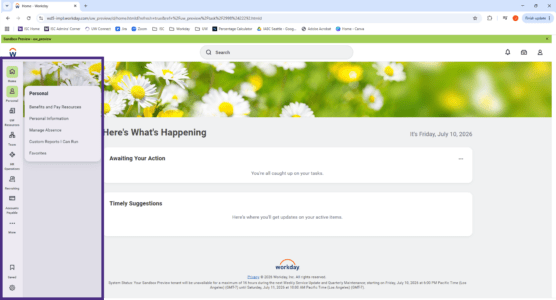
What’s changing:
- Menu options (“apps”) will now be organized into categories to help make it easier to find the option you’re looking for, including:
- Personal – where you’ll find options to update your personal information, review your paycheck and manage your absences.
- UW Resources – where you’ll find the Jobs Hub and access to Learning modules.
- Team – where managers will find links to review their direct reports and team schedules.
- The menu itself will become an icon sidebar on the left side of the screen, which will remain visible across all Workday screens for quicker access.
- The new navigation sidebar will replace the current “Menu” button.
Where you’ll find your most-used apps:
With the new menu, Workday apps will move into different categories. Use this quick guide to find the apps you use most:
- Time => Under “Personal”
- Manage Absence => Under “Personal”
- Benefits and Pay Resources => Under “Personal”
- Jobs Hub => Under “UW Resources”
Accidentally remove a menu item you need?
No worries!
Select the Customize gear icon (bottom of menu) then either:
- Select the Reset Menu to Default option (quickest option)
OR
- Select the + Add Menu Items button
- Find the item you need:
- Type the name of the item you’re looking for in the Find Menu Items search box
OR - Scroll through the list
- Type the name of the item you’re looking for in the Find Menu Items search box
- Select the + plus icon after the item’s name
- Select the Add Item button at the bottom of the pop-up
- Select the Save Changes button at the bottom of the Customize Navigation pop-up
The item will then appear in your menu in its appropriate category.